
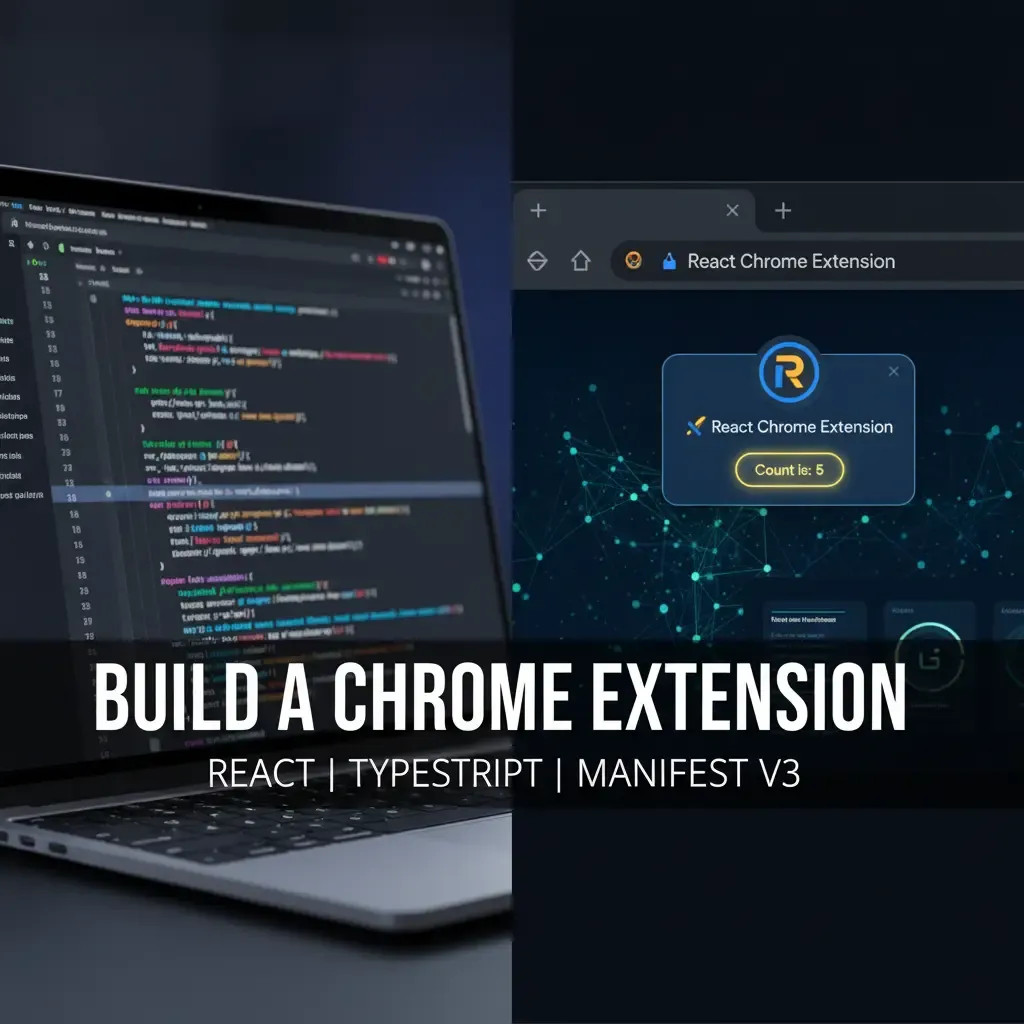
🚀 How to Build a Chrome Extension with React and TypeScript (Manifest V3)
Learn how to build a powerful Chrome extension from scratch using React, TypeScript, and Vite. This guide covers Manifest V3 setup, UI development, and local testing for modern web developers.
Building a Chrome extension is one of the most rewarding projects for a web developer. Whether you want to automate workflows, enhance your favorite website's UI, or build a brand-new productivity tool, extensions give you the power to mold the web to your liking.
While vanilla JavaScript is fine for simple extensions, as your project grows, managing state and UI complexity can become a nightmare. This is where React and TypeScript shine. React makes building dynamic user interfaces a breeze, while TypeScript provides the type safety and autocompletion that prevent runtime errors.
In this comprehensive tutorial, we will walk through the exact steps to set up and build a modern Chrome Extension using React, TypeScript, Vite, and Manifest V3.
📑 What You Will Learn
Section | Description |
|---|---|
Project Setup | Bootstrapping a fast React + TypeScript app using Vite. |
Manifest V3 | Configuring the required |
Extension Architecture | Understanding popups, content scripts, and background service workers. |
Building the UI | Creating a functional React component for your extension popup. |
Testing | Loading and testing your unpacked extension locally in Google Chrome. |
🛠️ Prerequisites and Developer Tools
Before we dive into writing the code for our React Chrome extension, make sure you have the following installed on your local machine:
Tool | Description |
|---|---|
Node.js | The JavaScript runtime environment. (v16+ recommended for Vite compatibility) |
npm or yarn | Your package manager of choice to install dependencies. |
Code Editor | We highly recommend VS Code for its built-in TypeScript support. |
🏗️ Step 1: Scaffold Your React + TypeScript Project with Vite
To build a modern Chrome extension, we need a fast bundler. Vite is a blazing-fast build tool that works beautifully with React and TypeScript.
Open your terminal and run the following command to bootstrap your project:
npm create vite@latest my-react-extension -- --template react-ts
cd my-react-extension
npm install
This command creates a fresh React project with TypeScript pre-configured, saving you hours of manual Webpack setup.
📜 Step 2: Configure Chrome Extension Manifest V3
Every Chrome extension requires a manifest.json file. This file acts as the blueprint, telling the Chrome browser everything it needs to know about your extension: its name, required permissions, and where to find the execution code.
Google requires all new extensions to use Manifest V3, which brings massive improvements to security and performance.
Create a file named manifest.json inside your public folder and add the following configuration:
{
  "manifest_version": 3,
  "name": "React TS Extension",
  "version": "1.0.0",
  "description": "A step-by-step tutorial on building a Chrome extension with React and TypeScript.",
  "action": {
    "default_popup": "index.html"
  },
  "permissions": [
    "activeTab",
    "storage"
  ]
}
Pro Tip: Placing this file in the public folder ensures Vite automatically copies it to the root of your final build directory.
🧩 Step 3: Understand Chrome Extension Architecture
Before writing our React components, it is crucial to understand the three main pillars of a Chrome extension:
Component | Role in the Extension | Execution Environment |
|---|---|---|
Popup | The user interface that appears when you click the extension icon in the toolbar. | Runs in its own isolated HTML window. |
Content Script | Scripts that inject into and modify the DOM of specific web pages the user visits. | Runs within the context of the active web page. |
Background Script | (Service Worker in V3) Handles browser events, API calls, and runs silently in the background. | Runs in an isolated service worker environment. |
For this beginner guide, we are focusing primarily on the Popup component, which will be powered entirely by our React application.
⚛️ Step 4: Build the React Extension Popup UI
Now, let's create the actual user interface. Open src/App.tsx and replace its contents with a simple, interactive counter application:
import { useState } from 'react';
import './App.css';

function App() {
  const [count, setCount] = useState<number>(0);

  return (
    <div style={{ padding: '20px', width: '320px', textAlign: 'center' }}>
      <h2>🚀 React Chrome Extension</h2>
      <p>Click the button below to test React state inside a Chrome popup!</p>
      <button
        onClick={() => setCount((prev) => prev + 1)}
        style={{ padding: '10px 20px', fontSize: '16px', cursor: 'pointer', background: '#646cff', color: 'white', border: 'none', borderRadius: '4px' }}
      >
        Count is: {count}
      </button>
    </div>
  );
}

export default App;
Important Design Note: Extension popups do not have a default size. Always set explicit dimensions (like width: '320px') on your main wrapper container so your UI doesn't look squished when the user clicks the icon.
📦 Step 5: Build and Load Your Unpacked Extension into Chrome
It is time to see your creation in the browser! First, we need to compile our React and TypeScript code into static HTML, CSS, and JS that Chrome can understand.
Run this command in your terminal:
npm run build
Vite will bundle your application and output the production-ready files into a dist folder.
How to load your extension locally:
- Open Google Chrome and type
chrome://extensions/into the URL bar. - Toggle the Developer mode switch in the top right corner.
- Click the Load unpacked button in the top left menu.
- Select the
distfolder generated by Vite.
🎉 Congratulations! Your extension icon should now appear in the browser toolbar. Click it to interact with your React-powered popup.
❓ Frequently Asked Questions (FAQ)
Can I use React to build a Chrome extension?
Yes! React is highly recommended for complex Chrome extensions. It allows you to manage UI state efficiently within extension popups and injected content scripts.
What is Manifest V3?
Manifest V3 is the latest architectural standard for Chrome extensions. It replaces background pages with Service Workers to improve browser performance, privacy, and security.
How do I save data in a React Chrome extension?
Instead of using standard localStorage, you should use the chrome.storage.local API. This allows your extension to securely store and sync data across your background scripts, popups, and content scripts.